IT administrator managment
Environment variables
Through this section is going to be commented the procedures that needs the use of inventory file. As known the file is edited bofer installation and after that it becomes default. But the variables and their values stayes as environment variables.
To check this variables open the file /etc/profile.d/omnileads_envars.sh.
cat /etc/profile.d/omnileads_envars.sh

AMI_USER=omnileadsami
AMI_PASSWORD=5_MeO_DMT
ASTERISK_IP=192.168.95.163
ASTERISK_HOSTNAME=localhost.localdomain
ASTERISK_LOCATION=/opt/omnileads/asterisk
CALIFICACION_REAGENDA=Agenda
DJANGO_PASS=098098ZZZ
DJANGO_SETTINGS_MODULE=ominicontacto.settings.production
EPHEMERAL_USER_TTL=28800
EXTERNAL_PORT=443
INSTALL_PREFIX=/opt/omnileads/
KAMAILIO_IP=192.168.95.163
KAMAILIO_HOSTNAME=localhost.localdomain
KAMAILIO_LOCATION=/opt/omnileads/kamailio
MONITORFORMAT=mp3
MYSQL_PWD=098098ZZZ
NGINX_HOSTNAME=localhost.localdomain
OMNILEADS_IP=192.168.95.163
OMNILEADS_HOSTNAME=localhost.localdomain
PGHOST=localhost.localdomain
PGDATABASE=omnileads
PGUSER=omnileads
PGPASSWORD=my_very_strong_pass
PYTHONPATH=$INSTALL_PREFIX
REDIS_HOSTNAME=localhost
SESSION_COOKIE_AGE=3600
TZ=America/Argentina/Cordoba
WOMBAT_HOSTNAME=localhost.localdomain
WOMBAT_USER=demoadmin
WOMBAT_PASSWORD=demo

export AMI_USER AMI_PASSWORD ASTERISK_IP ASTERISK_HOSTNAME ASTERISK_LOCATION CALIFICACION_REAGENDA DJANGO_SETTINGS_MODULE DJANGO_PASS EPHEMERAL_USER_TTL EXTERNAL_PORT INSTALL_PREFIX KAMAILIO_IP KAMAILIO_HOSTNAME KAMAILIO_LOCATION MONITORFORMAT MYSQL_PWD NGINX_HOSTNAME OMNILEADS_IP OMNILEADS_HOSTNAME PGHOST PGDATABASE PGUSER PGPASSWORD PYTHONPATH REDIS_HOSTNAME SESSION_COOKIE_AGE TZ WOMBAT_HOSTNAME WOMBAT_USER WOMBAT_PASSWORD
This way the administrator can see them when he/she wants
Important
Do not edit this file.
Configuration of the Predictive Dialer module
First of all, we notified if the OML instance deployed in the previous steps does not contemplate the use of campaigns with predictive outbound dialer, this step can be omitted. OMniLeads needs a third-party tool to implement the campaigns with predictive outbound dialer. This tool is based on comercial software licenses that must be managed with the manufacturer.
In any case the system can be used with a test channel that grants as a demo. Therefore we can configure the component and run concept tests before acquiring licenses for a real operation.
If running predictive campaigns is desired, we must generate the following basic Wobal Dialer settings. To generate this configuration we must follow some steps that begin with the access to the corresponding URL.
http://omnileads.yourdomain:8080/wombat or http://XXX.XXX.XXX.OML:8080/wombat
Note
In case of running OMniLeads Dockerized the URL is:http://XXX.XXX.XXX.OML:442/wombat
Where XXX.XXX.XXX.OML is the IP of docker engine host
When enter for the first time, we must proceed with the creation of a MariaDB database that uses Wombat Dialer. Click on the highlighted button in figure 2.
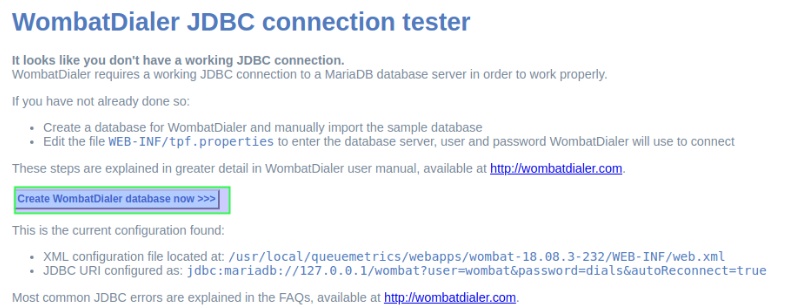
Figure 1: DB create
Luego es el momento de ingresar la clave del usuario root de MySQL y hacer click en botón remarcado en la figura 2.
Note
El password del usuario root de MySQL fue configurado en el archivo inventory al momento de la instalación y quedó disonible como variable de entorno que puede ser consultada según el procedimiento expuesto al comienzo de esta sección.
We proceed then with the creation of the MariaDB database that will use from now on the Wombat Dialer component.
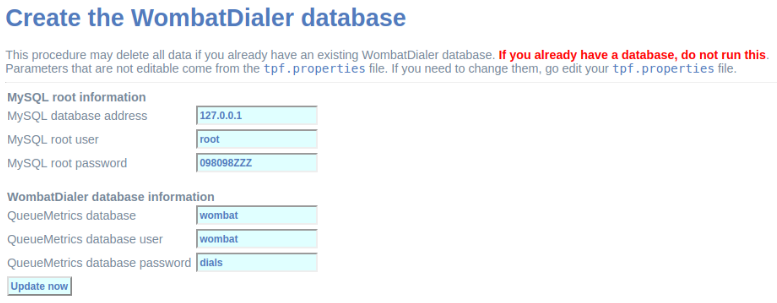
Figure 2: MariaDB root password
Once created the MariaDB database that Wombat Dialer uses, we proceed with the first login.
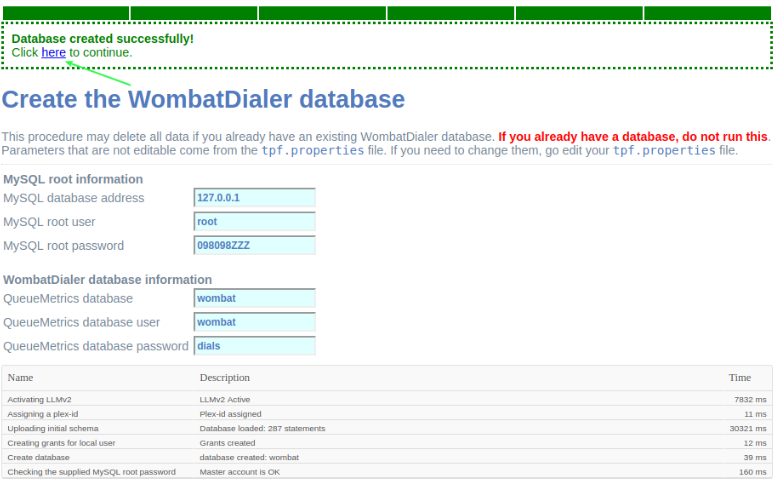
Figure 3: Login post db create
A login must be performed then in the Wombat Dialer administration interface to continue with the configuration of the necessary parameters for the OML interaction.
Upon entering a screen like the following is displayed, where we must access with the user and passwords generated within the installation. Remember that these variables are found in the copy of the inventory file (my_inventory).
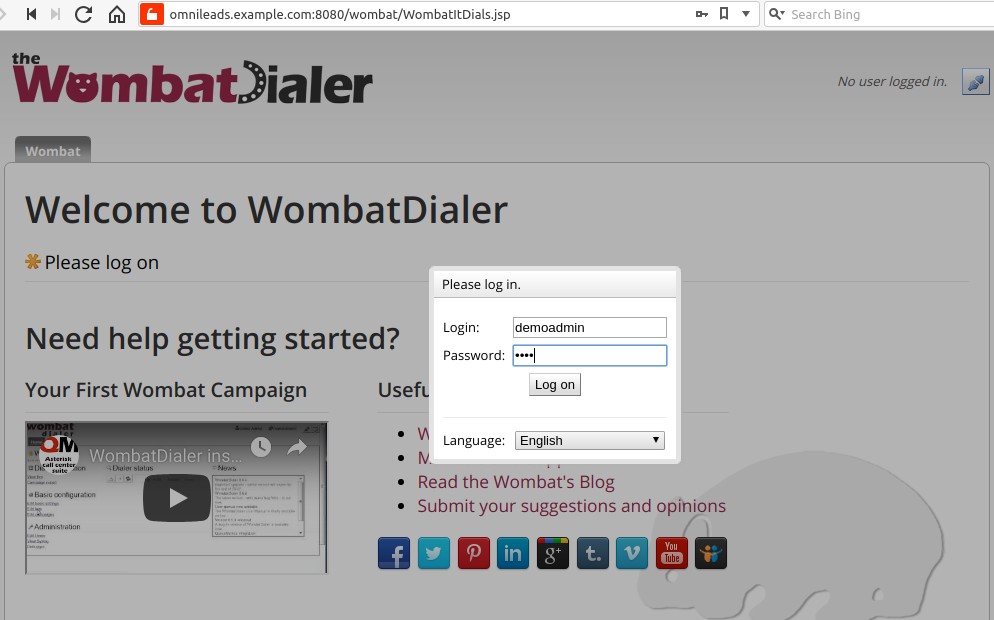
Figure 4: Access to WD
Once inside the system, we proceed with the configuration of the two basic parameters to make the integration with OMniLeads ready. To do this we must access the “Basic configuration” menu as indicated in figure 5.
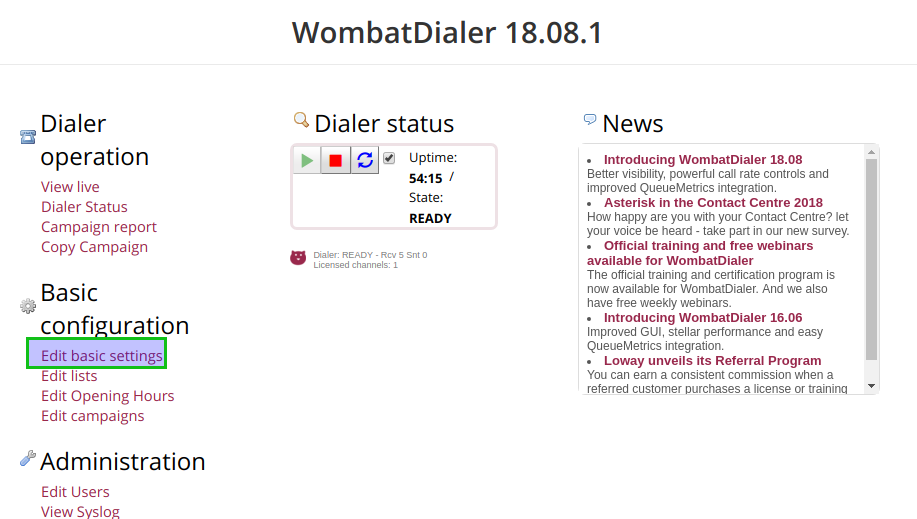
Figure 5: WD basic config
In this menú, first of all, a new conection instance must be generated inside the “Asterisk Servers” section as exposed in figure 6.
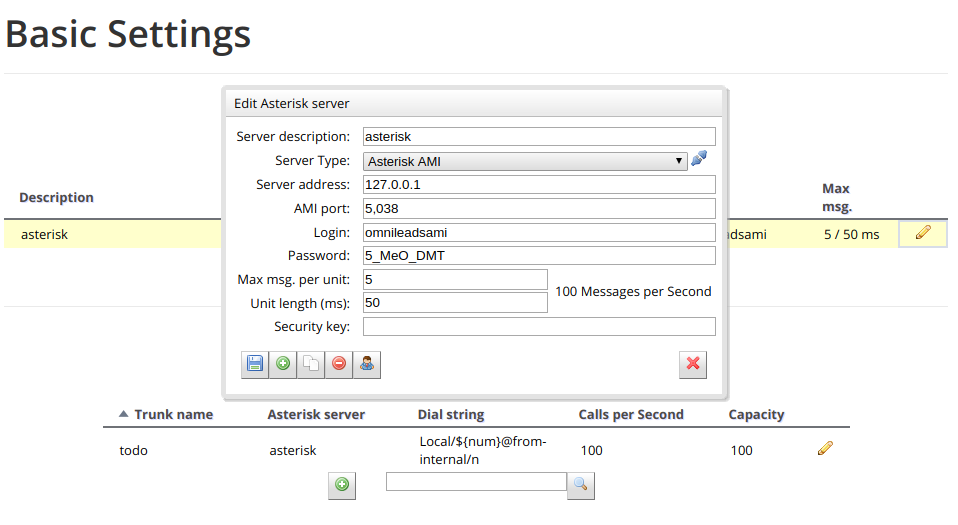
Figure 6: WD basic config - AMI Asterisk
In the next point, a Trunk is configured using an arbitrary “Trunk name”, but with the calling chain marked in figure 7. Local/${num}@from-oml/n
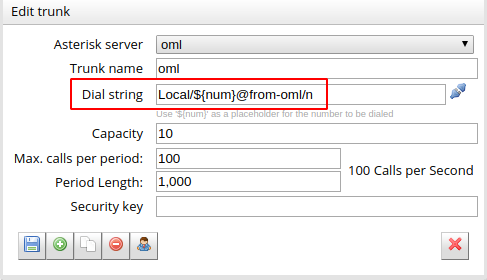
Figure 7: WD basic config - Asterisk Trunk
Por último, recuerde dar “play” al servicio de dialer, tal como lo indica la siguiente figura 8.
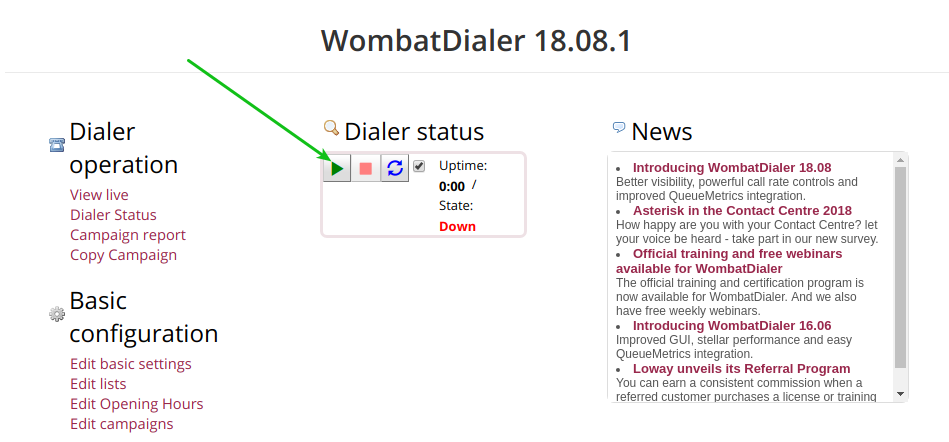
Figure 8: WD activate
Finally the platform is enabled to manage predictive calls. The default installation has a Wombat Dialer demo license for a channel.
Backup & Restore
OMniLeads has a script to perform the Backup/restore tasks.
Important
In case of perform the restore in a new machine, that machine must:
- Has OMniLeads installed in the same version that the productive machine
- Has the same IP and the same hostname of the productive machine
To perform a Backup:
We must access the host where OMniLeads is running through ssh. Once inside the host we execute the following commands.
su omnileads -
cd /opt/omnileads/bin
./backup-restore.sh -b
The execution of the script throws an output similar to the one on figure 9.
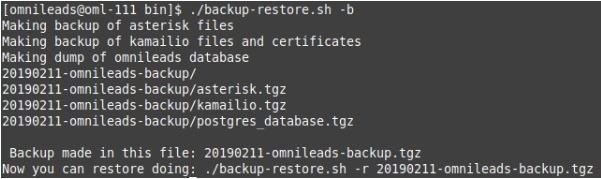
Figure 9: backup
As we can see, it indicates us how to perform the restore of that Backup.
Inside the path /opt/omnileads/backup, the “.tgz” files that contain the executed backups are generated.
If the restore is performed in a new host, then the file generated in the Backup within the path /opt/omnileads/backup must be left available.
To perform a restore, we must execute:
 su omnileads
 cd /opt/omnileads/bin/
./backup-restore.sh -r nombre_del_archivo_de_backup
For example:
 su omnileads
 cd /opt/omnileads/bin/
./backup-restore.sh -r 20190211_database.tgz
It is no needed to add the full location path of the backup.
A succesful restore throws an output similar to figure 10.

Figure 10: restore
Once the restore is finished, execute the following command to regenerate the configuration files and AstDB values of the restored instance:
/opt/omnileads/bin/manage.sh regenerar_asterisk
Upgrades
Important
Upgrade under release-1.3.1 to release-1.3.1 (including it)
- Is ESSENTIAL to know the passwords for postgresql, mysql and django admin that were set during installation. You can see these passwords in my_inventory file and you will have to type them again in inventory file. If the same passwords are not used, the upgrade will set up the passwords you typed in inventory file
- If you don’t use the same MySQL password you set during install, the upgrade will fail
OMniLeads is forged under a paradigm of continuous releases, which implies a flow of constant updates. That is why is very important to carry out the updates in a clear way.
Below are the steps to follow in order to perform a new platform update. This task is also performed with the script “deploy.sh”.
The updates are announced through the oficial communication channels of the project. Depending of the installation method that has been selected.
Installation Self-Hosted
Access the host omnileads as root Position on the directory where the script “deploy.sh” resides
cd ominicontacto/deploy/ansible
Assuming that we are working on the stable releases (master) A “git pull origin master” must be executed to bring us the repository updates.
git pull origin master
Uncomment the line for self-hosted installation in the inventory file
##########################################################################################
# If you are installing a prodenv (PE) AIO y bare-metal, change the IP and hostname here #
##########################################################################################
[prodenv-aio]
localhost ansible_connection=local ansible_user=root #(this line is for self-hosted installation)
#10.10.10.100 ansible_ssh_port=22 ansible_user=root #(this line is for node-host installation)
Then the script is executed with the -u (update) parameter. This execution will take some minutes and implies applying all the updates downloaded with the “git pull origin master” on our OMniLeads instance.
./deploy.sh -u --iface=**your_NIC_name**
If everything flows correctly, at the end of the task execution we will see a screen as shown in figure 11.
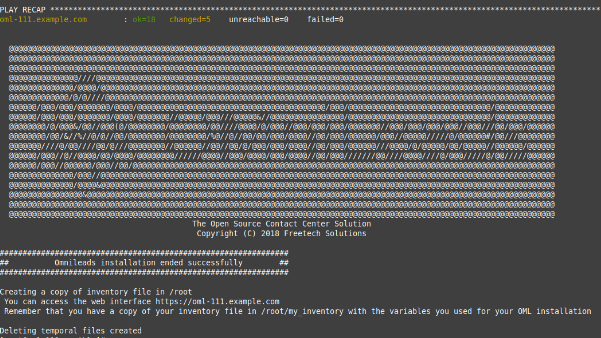
Figure 11: updates OK
Installation from remote Linux Workstation
The cloned repository must be accessed on our Workstation machine, to run the update on the Linux OMniLeads host.
cd PATH_repo_OML
git pull origin master
cd ominicontacto/deploy/ansible
Next and as in each execution of the script “deploy.sh”, the inventory file must be reviewed, ensuring the match of the hostname parameter and IP address with respect to the host where OMniLeads runs and we will update.
##########################################################################################
# If you are installing a prodenv (PE) AIO y bare-metal, change the IP and hostname here #
##########################################################################################
[prodenv-aio]
#localhost ansible_connection=local ansible_user=root #(this line is for self-hosted installation)
10.10.10.100 ansible_ssh_port=22 ansible_user=root #(this line is for node-host installation)
Note
It should be noted that for remote installation, the line with the parameter “ansible_ssh_port=22” (where 22 is the default port, but is normal for another port to be used) within the section [omnileads-aio]
Then the script is executed with the -u (update) parameter. This execution will take some minutes and implies applying all the updates downloaded with the “git pull origin master” on our OMniLeads instance.
./deploy.sh -u
Finally, the platform is updated to the last stable version “master”
Figure 12: updates from ansible remote OK
Note
Las instalaciones AIO dejarán de ser soportadas en un futuro para Debian y Ubuntu, por lo que se recomienda usar CentOS
Instalation based on Docker containers
One of great advantages of containers technologies is the easy way to distribute, install and upgrade the applications. To OMniLeads follow these steps:
- Create a copy of .env file in /home/omnileads/prodenv/ to keep your variables
- Copy the content of deploy/docker/prodenv/ folder in /home/omnileads/prodenv
- Modify the new file .env with your variables
- Restart omnileads-pbx service
systemctl restart omnileads-pbx
En el proceso de reinicio cuando se invoca el docker-compose al percatarse del tag de versión modificado se procede con la descarga de las nuevas imagenes que implementan el release especificado.
Note
- The new releases use to bring new JavaScript code. The browser mantains the old code in the cache so it is recommended to install an addon in the browser to clear the cache. Clear cache to Google Chrome, for example
- Una vez copiado el contenido de prodenv revisar el archivo .env, se pudo haber implementado una nueva variable de entorno
Changes of network parameters (Hostname and/or IP Address) and changes of passwords of services
OMniLeads is a complex system, with some services oriented to real-time communications running in the Linux Host. This implies that a change of IP address or hostname of the host involves certain complexity.
To perform this tasks, we must execute again the script “deploy.sh”, same that was used to carry on the platform installation.
We must access the system with the root user, change the IP address in a operative system level and/or the hostname and make sure the host took the changes. A system reboot is recommended.
Then we continue with the changes on OML, for them we must stop over the directory where the IML repository was clones (if it was a self-hosted installation will be within the remote host, if it was an installtion from remote-ansible will be on the machine deployer.), to the access the directory deply/ansible, where we find the files deploy.sh and inventory.
There we must edit the file inventory again and review the hostname to make it match with the hostname of the host and there we also must configure the new IP address.
[prodenv-aio]
#localhost ansible_connection=local ansible_user=root #(this line is for self-hosted installation)
10.10.10.100 ansible_ssh_port=22 ansible_user=root #(this line is for node-host installation)
If you are going to use self-hosted type, uncomment the appropiate line in inventory file, if you are going to set host-node type, enter the new IP of the OMniLeads instance.
In the same way, if you want to change passwords of any service (postgresql, mysql, admin pass o AMI pass), uncomment the variables and enter the new password
#postgres_password=my_very_strong_pass
#admin_pass=my_very_strong_pass
ami_password=5_MeO_DMT
#mysql_root_password=my_very_strong_pass
Changes to the file are saved and finally the deploy.sh script is executed.
cd ominicontacto/deploy/ansible
./deploy.sh -u --iface=**your_NIC_name**
NOTE: if you are solving the hostname of OMniLeads with your file host on the work machine, do not forget to also change the parameters.
Users unblock
OMniLeads count with a block users system, when someone enter the wrong password three times. This is the security measure implemented to avoid brute force attacks in the platform’s Login console. The administrator user has the possibility of unblocking any user who has been blocked by entering the wrong password unintentionally.
To unblock it you enter the following URL: https://omnileads-hostname/admin, this URL displays the Django Administrator Console.
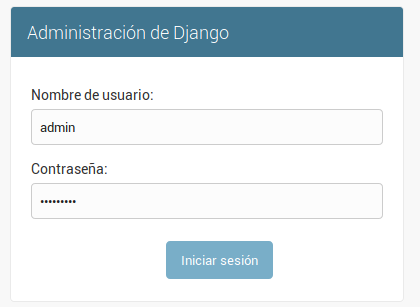
Figure 13: Django admin console
There, enter the admin user credentials. Then click on the button Defend

Figure 14: Defender in django admin
This opens the Django Defender administrator (https://github.com/kencochrane/django-defend) which is the Django plugin used to manage this. Click on Blocked Users
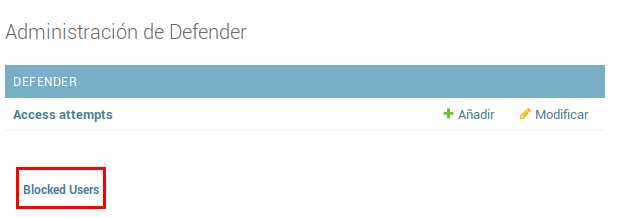
Figure 15: Blocked users view
You will see the blocked user. Just click on Unblock to unblock it.
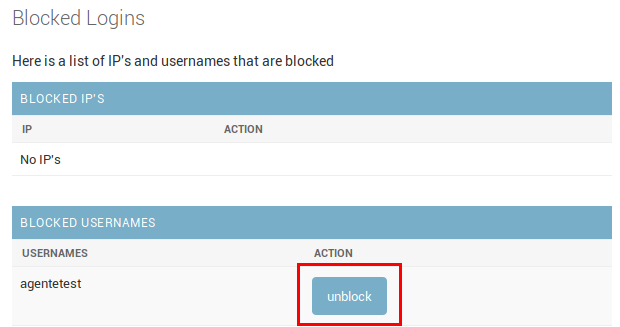
Figure 16: Unblock user view
Now the user can login without problem.
OMniLeads unistall
If by any reason you want to unistall OMniLeads from your machine or VM, there is a script for that. It is already incorportaed in the install process, just execute it:
oml-uninstall
This script:
- Unistall the essential services of omnileads: asterisk, kamailio, rtpengine, mariadb, postgreSQL, wombat dialer, redis, nginx and omniapp.
- Delete the file /opt/omnileads (including recordings)
- Remove the databases
Note
The script does not unistall the dependency packages used to install the services.
Important
Be careful when executing it, once executed there is no way to recover the system.