Preview campaigns
To create a new preview campaign you must enter the menu item Preview Campaigns -> New Campaign.
The first view invites us to indicate a series of campaign parameters, as indicated in Figure 1.
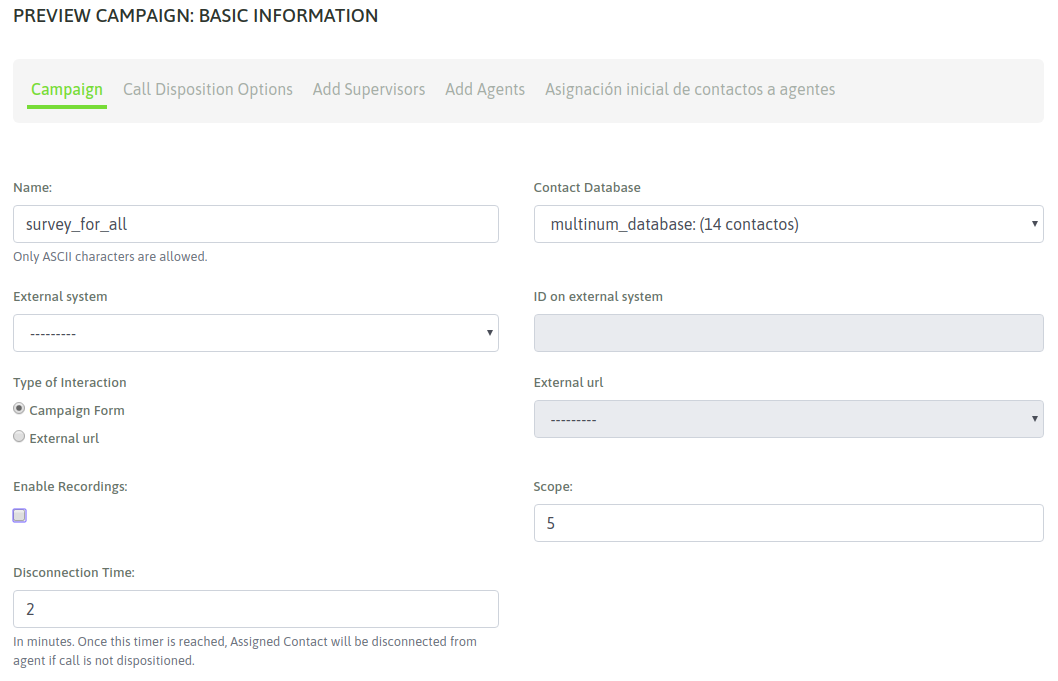
Figure 1: Campaigns parameters
- Name: campaign name
- Contact database: contact database that the preview dialer will use when delivering on demand contacts to each agent.
- External system: aquí se adjudica el sistema de gestión externo que ejecutaría “click to call” sobre la campaña, en caso de así desearlo.
- ID on external system: este campo debe contener el ID que posee la campaña dentro del sistema de gestión externo desde el cual llegarán los click to call o solicitudes de calificación de contactos.
- Type of interaction: indica si la campaña va a operar con formularios de OMniLeads o bien va a ejecutar una invocación hacia un CRM por cada llamada conectada.
- External URL: en caso de haber seleccionado la invocación a un URL externo en cada llamada, aquí se indica cual de los CRMs definidos debe invocar la campaña.
- Enable recordings: Enable all campaign calls to be recorded.
- Scope: it is defined as the amount of engaged dispositions expected for the campaign. In the campaign monitoring, the percentage of the campaign’s arrival with respect to the defined objective is shown in real time.
- Disconection time: time that the preview dialer reserves a contact assigned to an agent, after that time the contact is released so that it can be sued by another agent.
On the second screen you must assign the dispositions that are required as available to the agents when classifying each call to each contact.
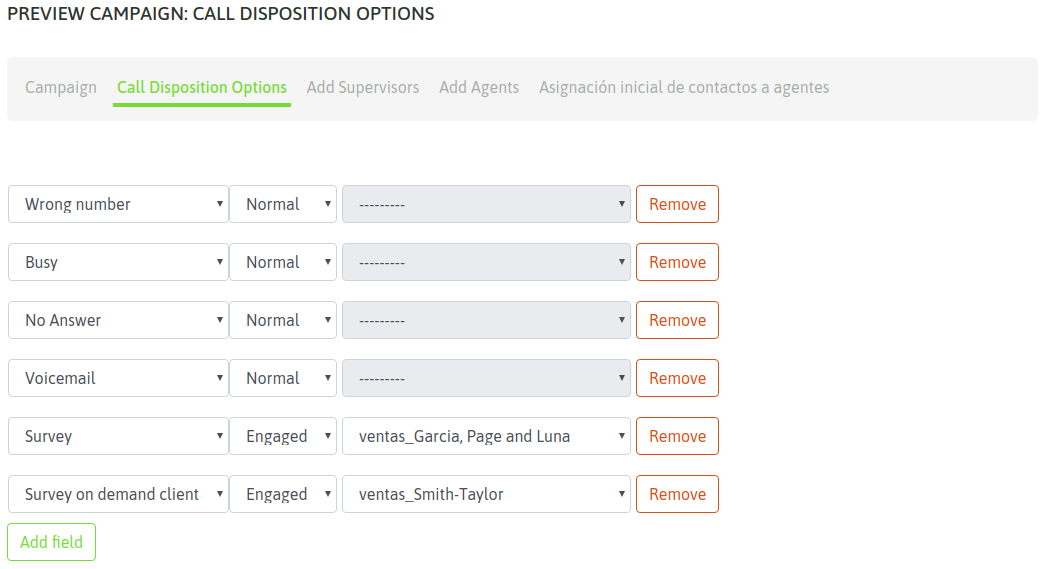
Figure 2: Call dispositions
Then it remains to assign the supervisors and agents who can work on the campaign. An assignment of agents to a campaign is exemplified in Figures 3 and 4.
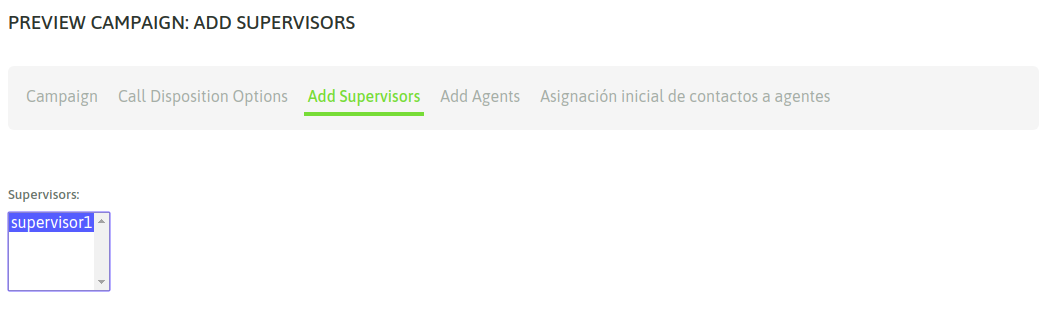
Figure 3: supervisor assignment
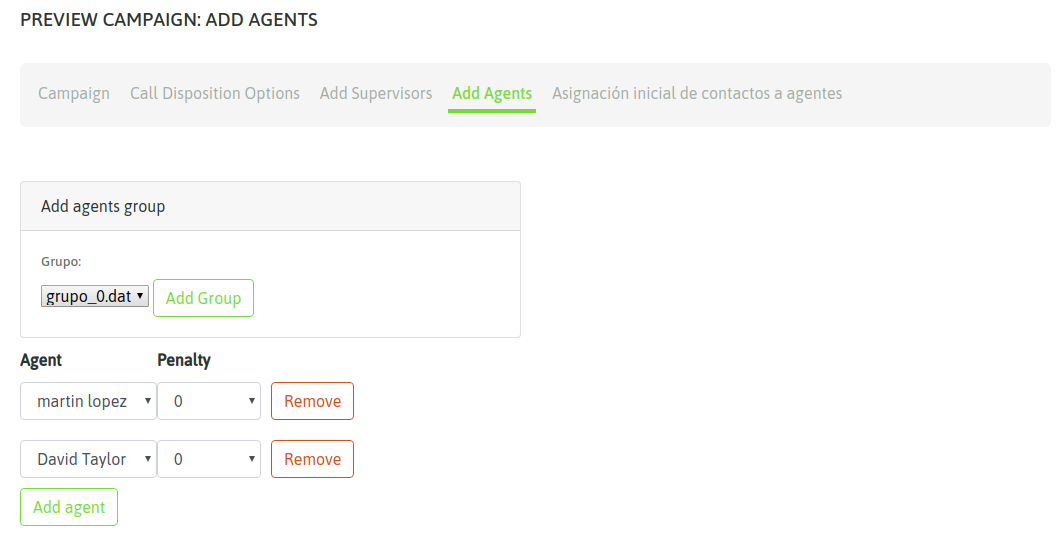
Figure 4: agent assignment
Finally, in the final wizard step is allowed, optionally realize a pre-assignation of contacs to agents. This operation can be made using two variants
The fist way is shown in the next figure:
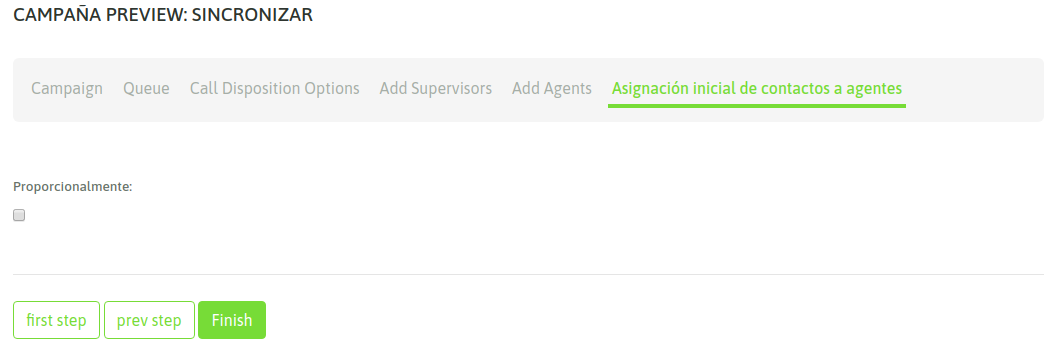
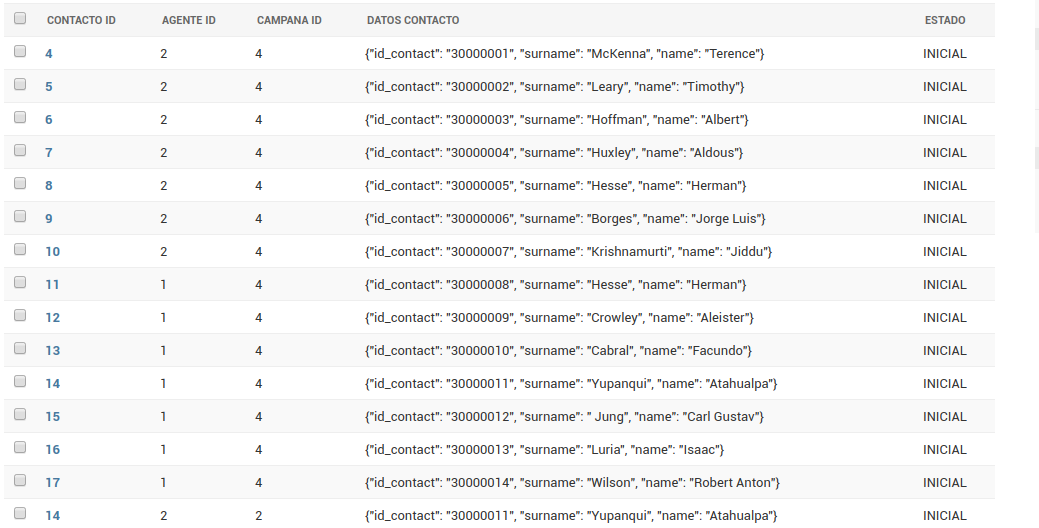
If the user select the assign proportionally option, the system will make an initial assignation of contacts to agents on the same proportion allowing send to the current agent only from his lists of pre-assigned contacts or free contactos. See this distribution on Django admin in the following picture.
At the moment of select the proportionally pre-assignation the system shows the random selection
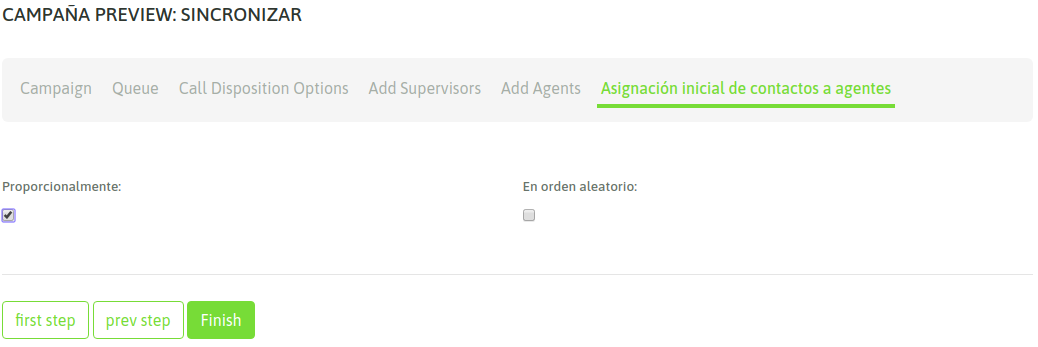
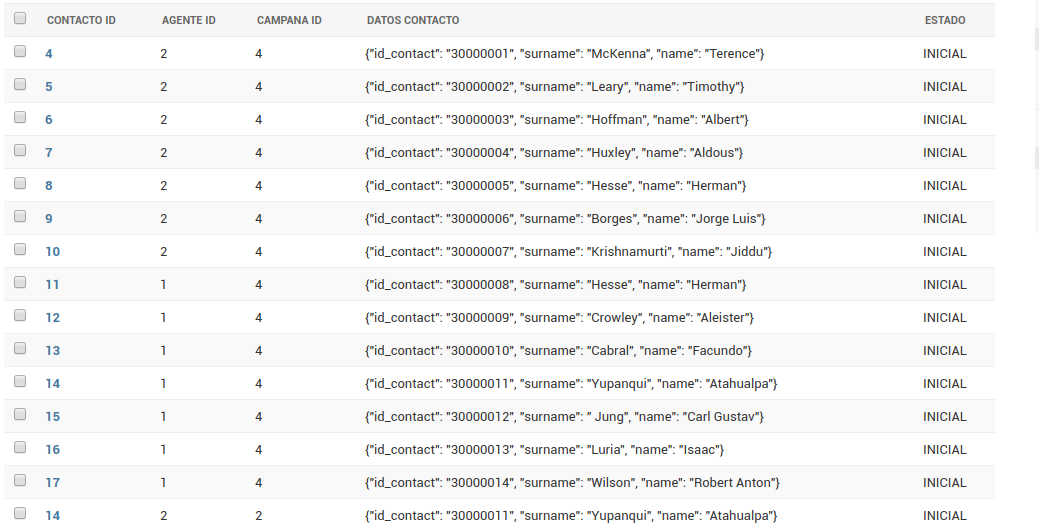
This option allows that the contacts could be assigned in random order to the agents, as is shown next:
Finally our campaign is available to start operating. Therefore, when the agents assigned to it perform a login to the platform, they should have the preview campaign as shown in Figure 5.
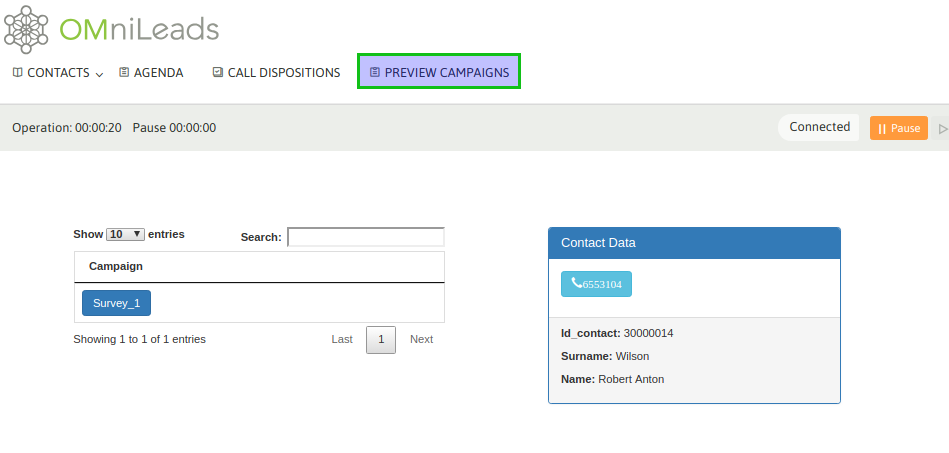
Figure 5: Preview agents view
If an agent clicks on the phone then the call is triggered, the data (extras to the phone) of the called contact is displayed, in the agent view allowing the agent to classify the call with any of the ratings assigned to the campaign.
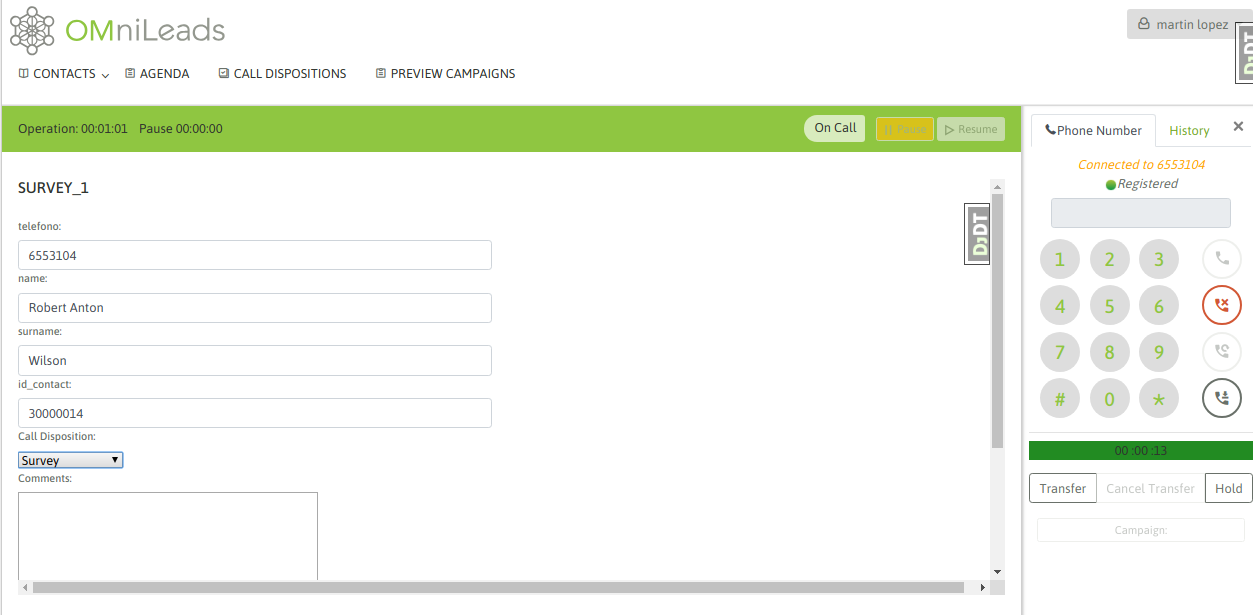
Figure 6: Contact called
Campaña con base de datos Multinum
As we know, OMniLeads admits that each contact of a database has n telephone numbers, so that if the contact is not found in its main number (the first of our database CSV file), it can be contacted at the other phone numbers. In this case, each telephone number (which we indicate in the database load) is generated as a link within the contact data presented on the agent screen. Clicking on that link triggers a call to the extra telephone number of the contact. Figure 11 shows this scenario.
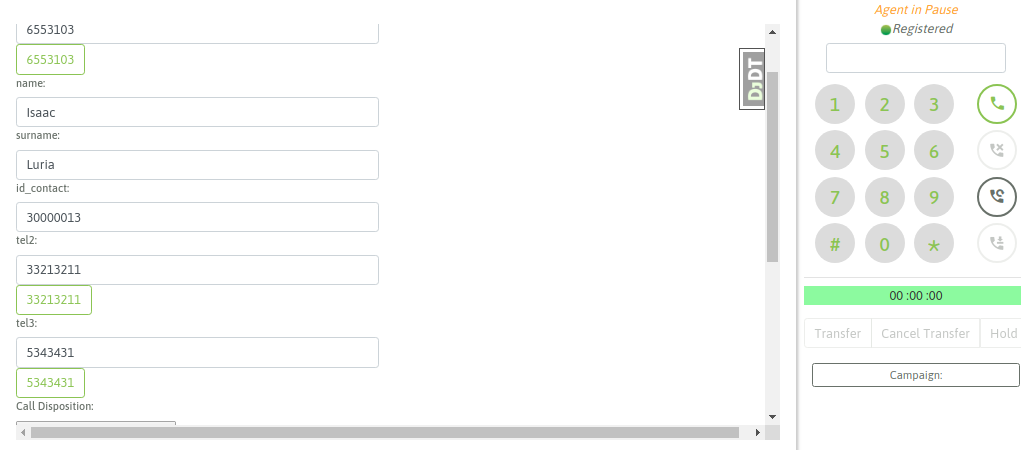
Figure 7: Multinum contact database
Therefore, the agent can try to contact all available numbers as a link in the contact form, until finally selecting a disposition and moving to a new one.